
The following settings must be enabled in order for Song Surgeon to run correctly on you Mac. Please follow the instruction below.
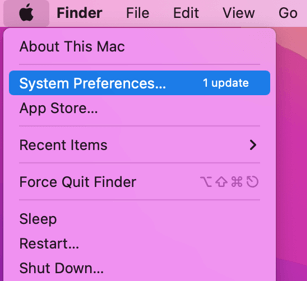
1. Go to System Preferences
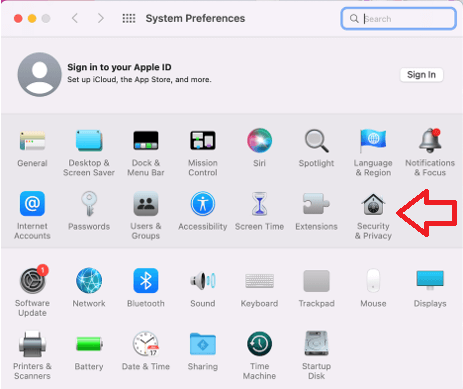
2. Select and click on Security and Privacy
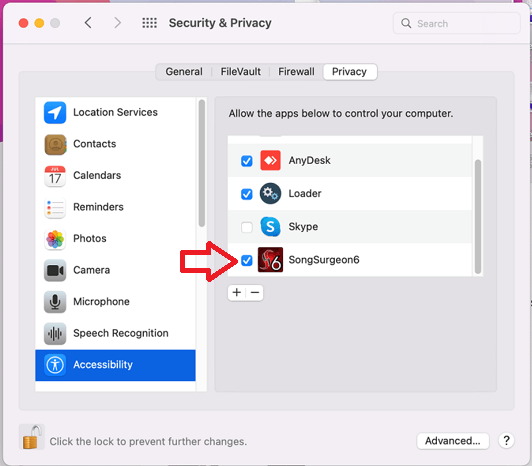
3. The following window will open as shown below. On the left-hand side select Accessibility. On the right-hand side, you may or may not see Song Surgeon 6. If you do, make sure it is checked. If it is not, click the padlock at the bottom left to unlock this window and then check the box next to Song Surgeon
If Song Surgeon 6 doesn’t appear in this window on the right, click the + button and then browse to your Applications folder and select Song Surgeon 6. Then, once added, make sure the box next to it is selected.
Click the padlock at the bottom to relock this screen.
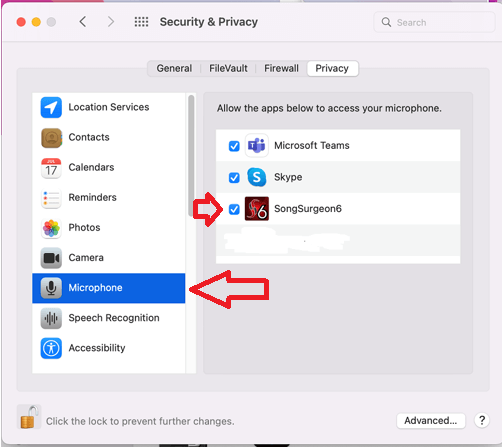
4. Next, in this same screen find and select “Microphone” on the left. When you do, on the right-hand window should see Song Surgeon. Again, it MUST be checked so, unlock the screen and check it, if it is not.
If Song Surgeon 6 doesn’t appear in this screen, it cannot be manually added. If you open the Recording Module or the Audio Stream Capture module on Song Surgeon 6 and then return here, you should now find Song Surgeon 6 in the right-hand screen.