

SONG SURGEON 6 · WINDOWS & MAC
An audio looper repeats a selected section of a recording so you can listen closely and play along. With Song Surgeon 6, set your start and end points, loop a difficult passage, and slow it down without changing its pitch.
Desktop software · Demo includes 4 hours of use
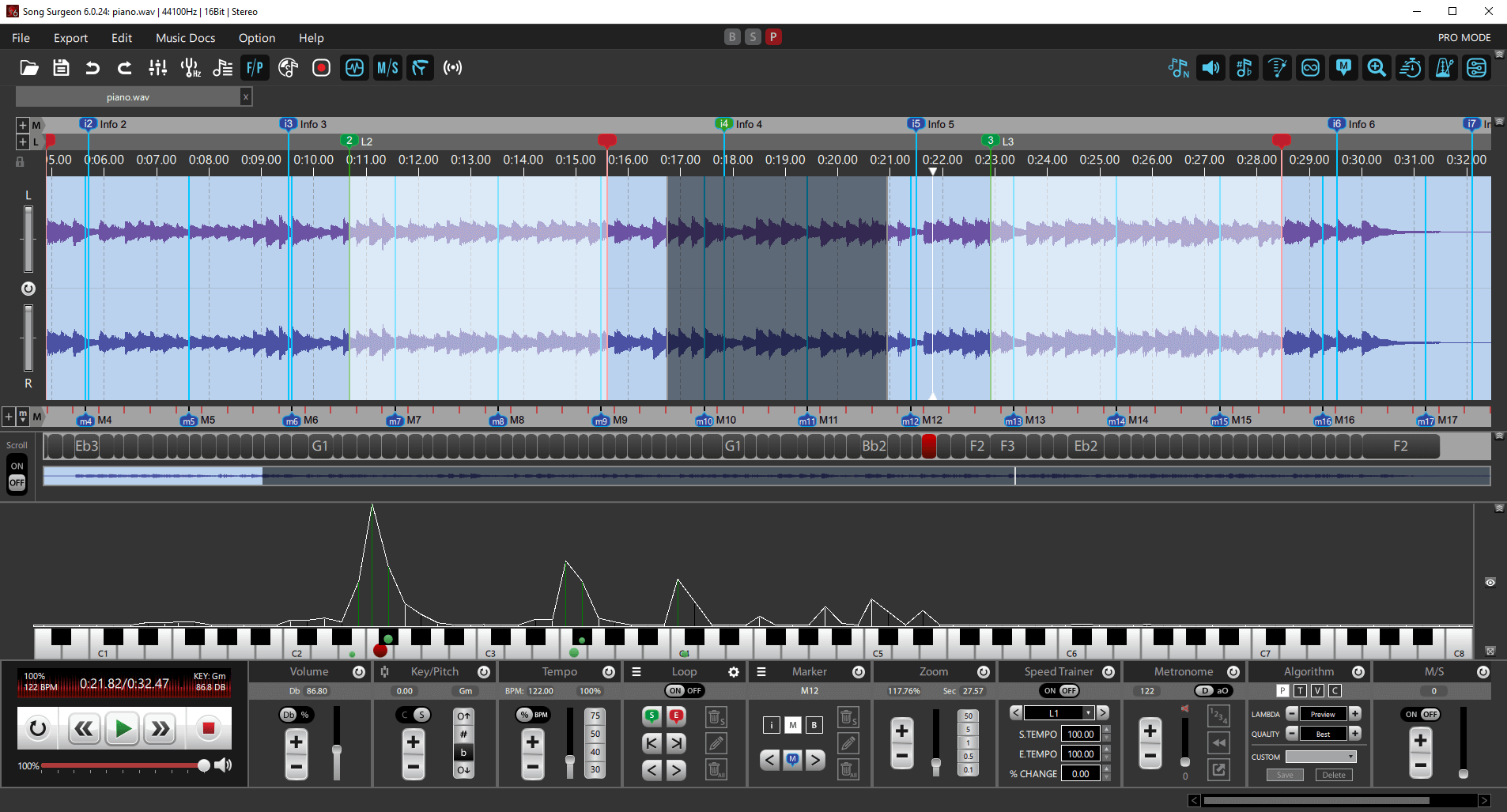
FOCUS ON THE PART YOU WANT TO LEARN
Repeat the two bars of a guitar solo you keep missing, a vocal phrase you want to hear again, or a chord progression you want to play over. A–B repeat gives you a defined beginning and end, so you can work on that passage without repeatedly rewinding the song.
Song Surgeon combines audio looping with independent tempo and key controls. You can repeat the passage at its original speed, slow it down to hear the details, or transpose it to suit your instrument or voice.
FROM AUDIO FILE TO A–B REPEAT
Choose File → Open New Audio/Project File, or use the folder icon, to open a supported file such as an MP3 or WAV. Play it and find the passage you want to repeat.
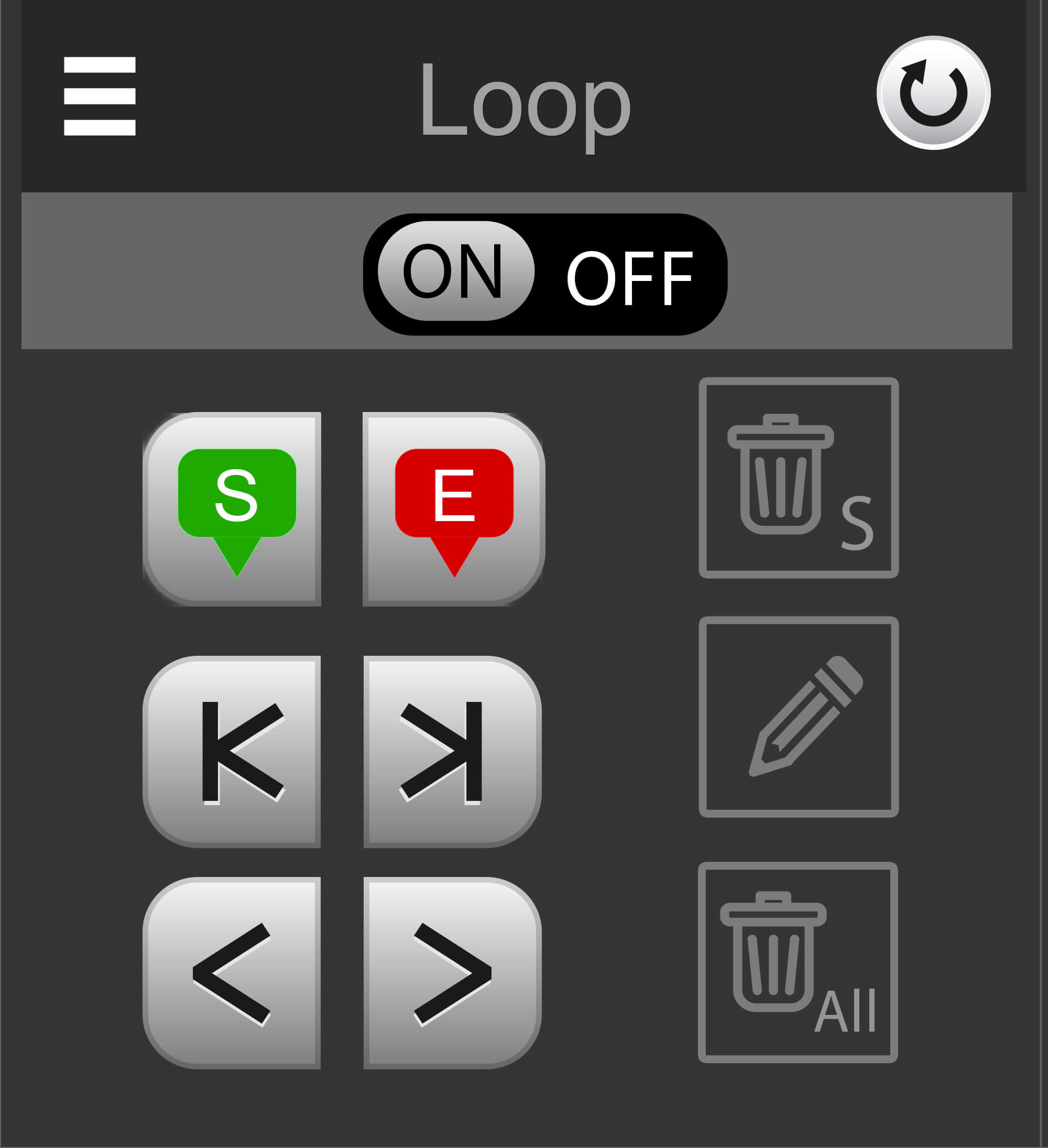
Open the Looping module. During playback, click the green S button at the beginning of the passage and the red E button at the end. These set your two loop boundaries.
Keep looping switched ON and play the passage. Drag either marker to adjust the section. Hover over a marker and use the left or right arrow key to nudge it in 10-millisecond steps.
Use the tempo controls to slow the passage while keeping the key unchanged. Start with a short, manageable phrase and increase the speed as your playing becomes more consistent.
For the complete controls, see section 10.5 of the Song Surgeon 6 User Guide.
CONTROL EACH REPEAT
Loop Count controls how often the passage plays. The documented default, −1, repeats continuously. A positive count plays the loop that many times, then lets playback continue beyond its end marker.
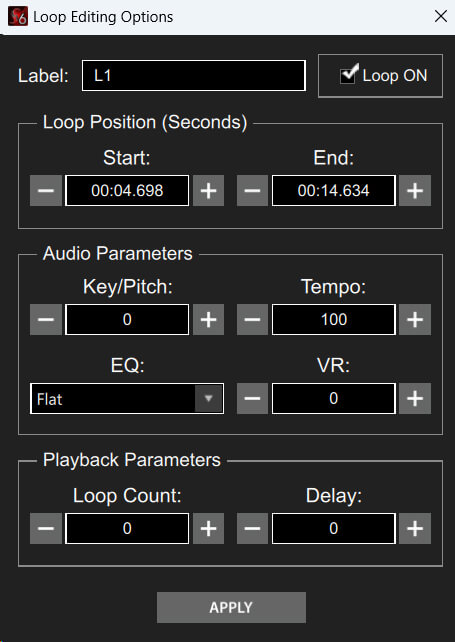
In Standard and Pro, the pencil button opens additional loop settings. Give the passage a useful name, adjust its start and end positions, or set its key and tempo. Use Delay to leave a pause between repetitions—for example, to sing the phrase back or reset your fingers.
For more accurate placement, listen to the transition from the end back to the beginning. Keep the first note intact and allow enough room for the phrase to finish. A whole number of beats often works well for a rhythm exercise; a vocal phrase may need a different boundary.
A clean repeat depends on the recording and your chosen boundaries. Preview the join before practicing or exporting.
Repeat a short phrase at a slower tempo, then expand the loop to connect it with the next phrase.
Shift the key for your voice or instrument while keeping the same passage available for repeated listening.
Standard and Pro include Speed Trainer, which can increase tempo through successive loops toward a target speed.
KEEP THE WORK YOU HAVE DONE
Save Project in Standard or Pro preserves your setup for another session. Use Export when you want a new audio file that includes your changes.
To save one passage as audio, place the progress indicator inside its boundaries and choose Export → Current Loop. Choose the output format and save the new file. Applied changes, such as key or tempo adjustments, are included in the exported audio.
Standard and Pro also offer All Loops to export your selected passages into one file, or All Loops – One at a time to create separate audio files. Playback repeat count and export choices serve different purposes: check the exported file to confirm its length and contents.
Basic includes core looping, repeat counts, tempo changes, and single-loop export. Standard adds saved projects, loop customization, delay, and Speed Trainer. Pro includes those features plus additional audio analysis and editing tools.
| Feature | Basic | Standard | Pro |
|---|---|---|---|
| Audio looping & repeat count | Yes | Yes | Yes |
| Export a single loop | Yes | Yes | Yes |
| Loop delay & customization | No | Yes | Yes |
| Save project files | No | Yes | Yes |
| Speed Trainer | No | Yes | Yes |
| Export multiple loops | No | Yes | Yes |
See the complete edition comparison for loop limits and all available features.
Yes. Set the start near the beginning and the end at the finish of the audio you want to repeat. Listen through the boundary to check for unwanted silence or a cut-off ending.
Yes. Looping repeats your selected region. Leave tempo at 100% and key/pitch unchanged to practice at the recording’s original speed and pitch.
Song Surgeon 6 is downloadable software for Windows and Mac. This page explains its looping features. The free demo gives you 4 hours of use to try the program with your recordings before choosing an edition.
PUT YOUR NEXT PRACTICE SESSION ON REPEAT
Set a loop, choose your pace, and work through the passage one repeat at a time.